

Log in to the system
1. Open the Hubbuyer platform and log in with your account https://b2b.hubbuyer.com/.
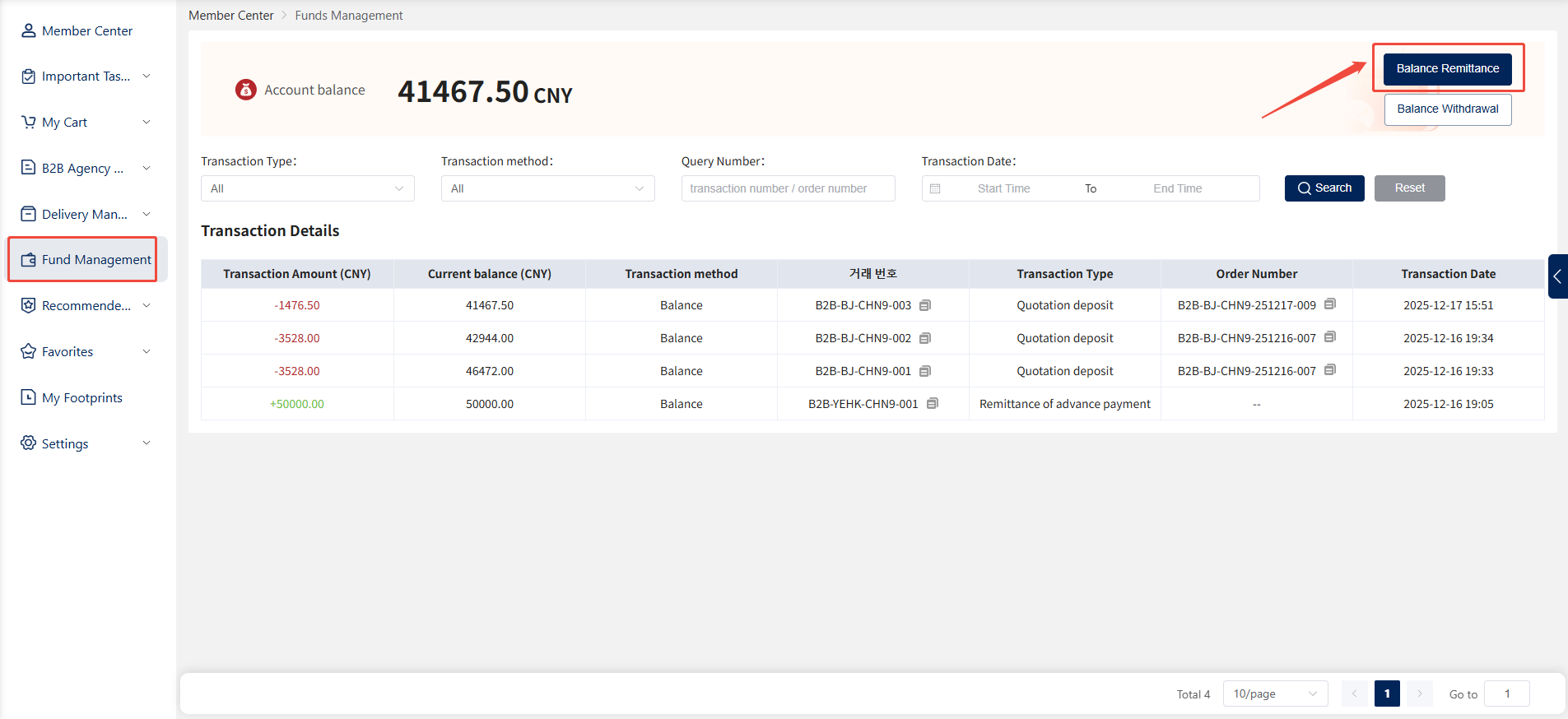
2. Navigate to [Personal Center] > [Fund Management], then click the "Balance Transfer" button in the top-right corner of the page.
T/T Wire Transfer
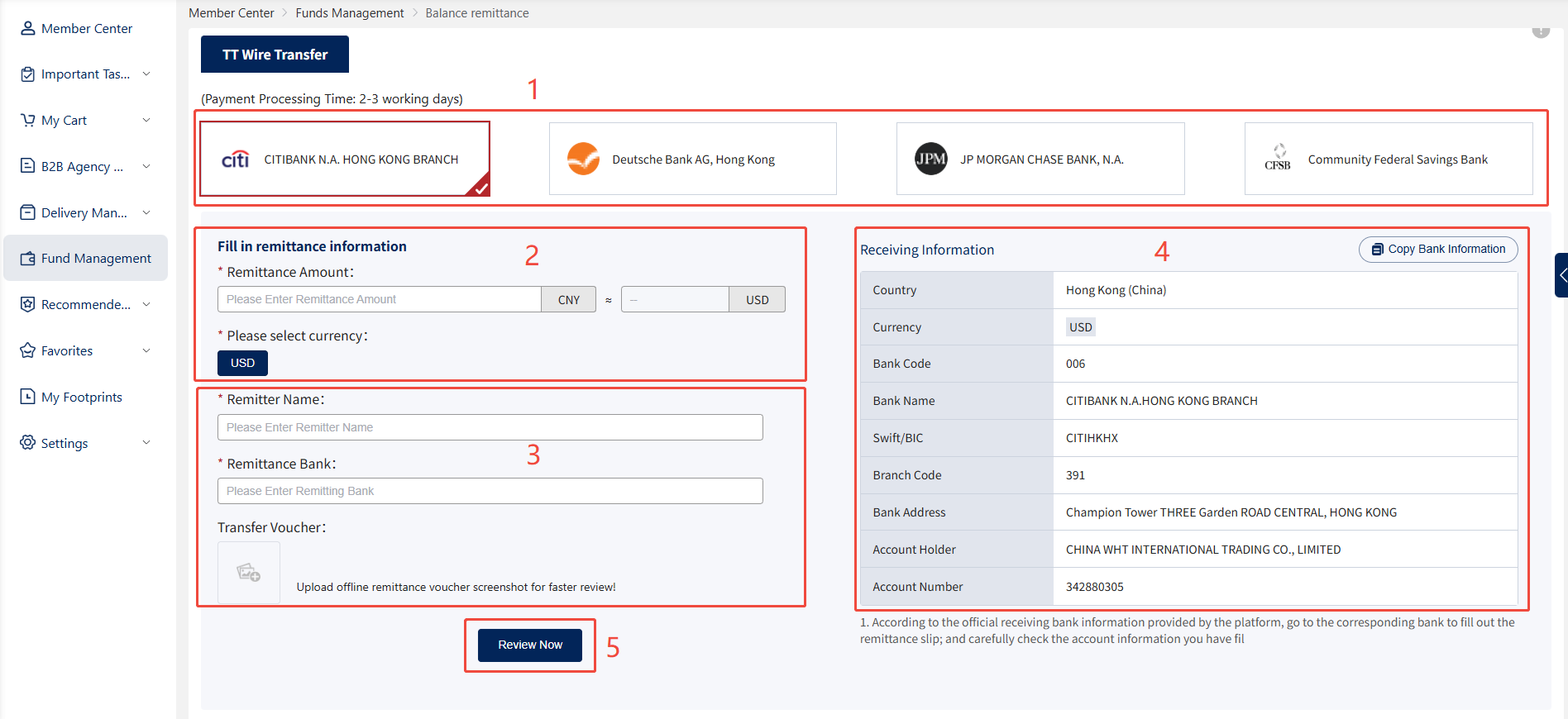
1. Select the appropriate bank. Different banks support transfers in different currencies.
2. Enter the remittance amount. The settlement currency is CNY (Chinese Yuan). After selecting the currency, the system will automatically calculate the corresponding amount.
3. Fill in the remitter's name and remitting bank details, ensuring all information matches the bank account records. After completing the transfer, upload a screenshot of the remittance for prompt verification.
4. Obtain payment details: Proceed to the designated bank for remittance using the official bank account information provided by the Hubbuyer platform. Click the "Copy Bank Details" button to copy the complete bank account information.
5. After confirming all information is correct, click the "Review Now" button to submit the T/T wire transfer details. Once the Hubbuyer platform verifies and confirms the payment has been received, the amount will appear on the [Personal Center] > [Fund Management] page.
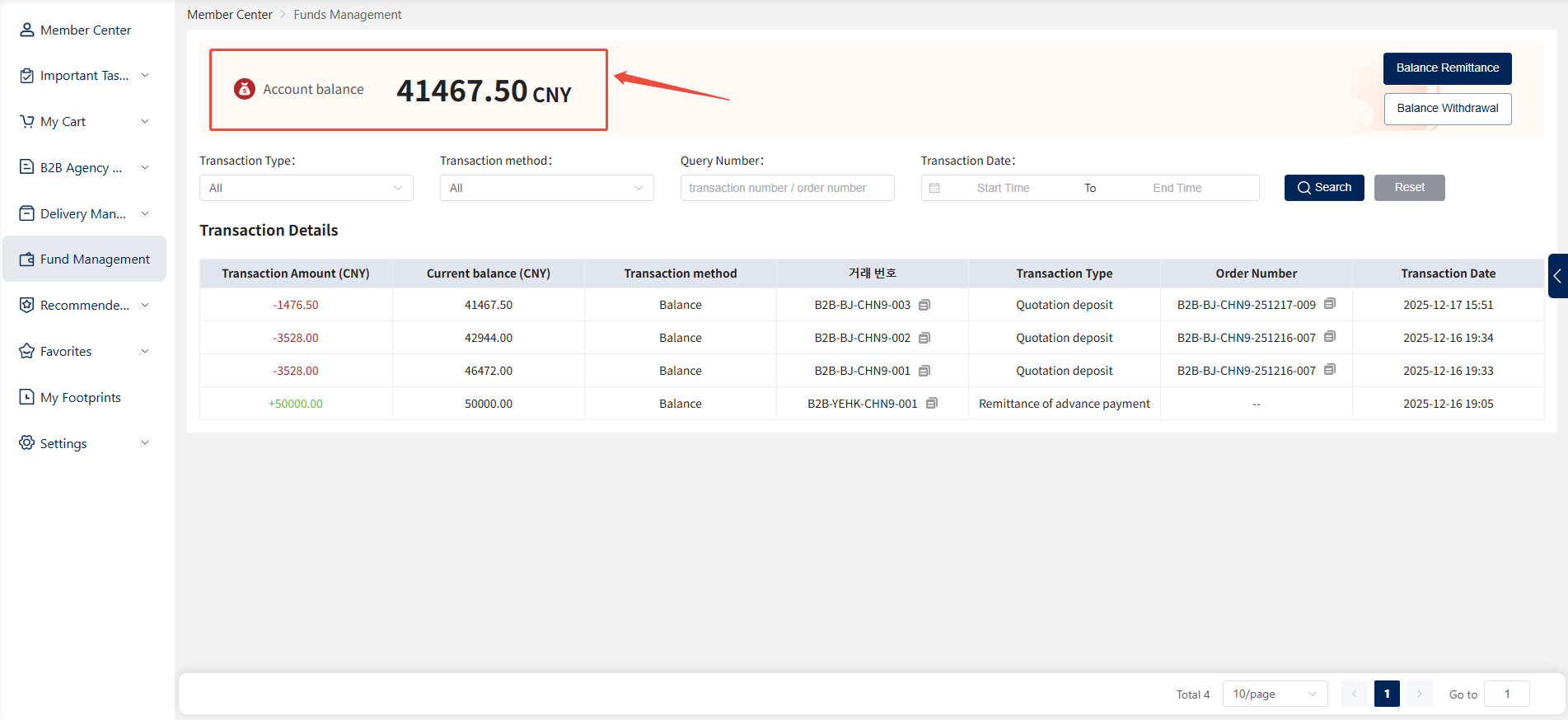
After successful submission, the received amount will appear on the [Personal Center] > [Fund Management] page once the Hubbuyer platform reviews and confirms the remittance.
Viewing Transfer Records
1. Go to the [Personal Center] > [Fund Management] page and click the "Balance Transfer" button in the top-right corner to enter the balance transfer page.
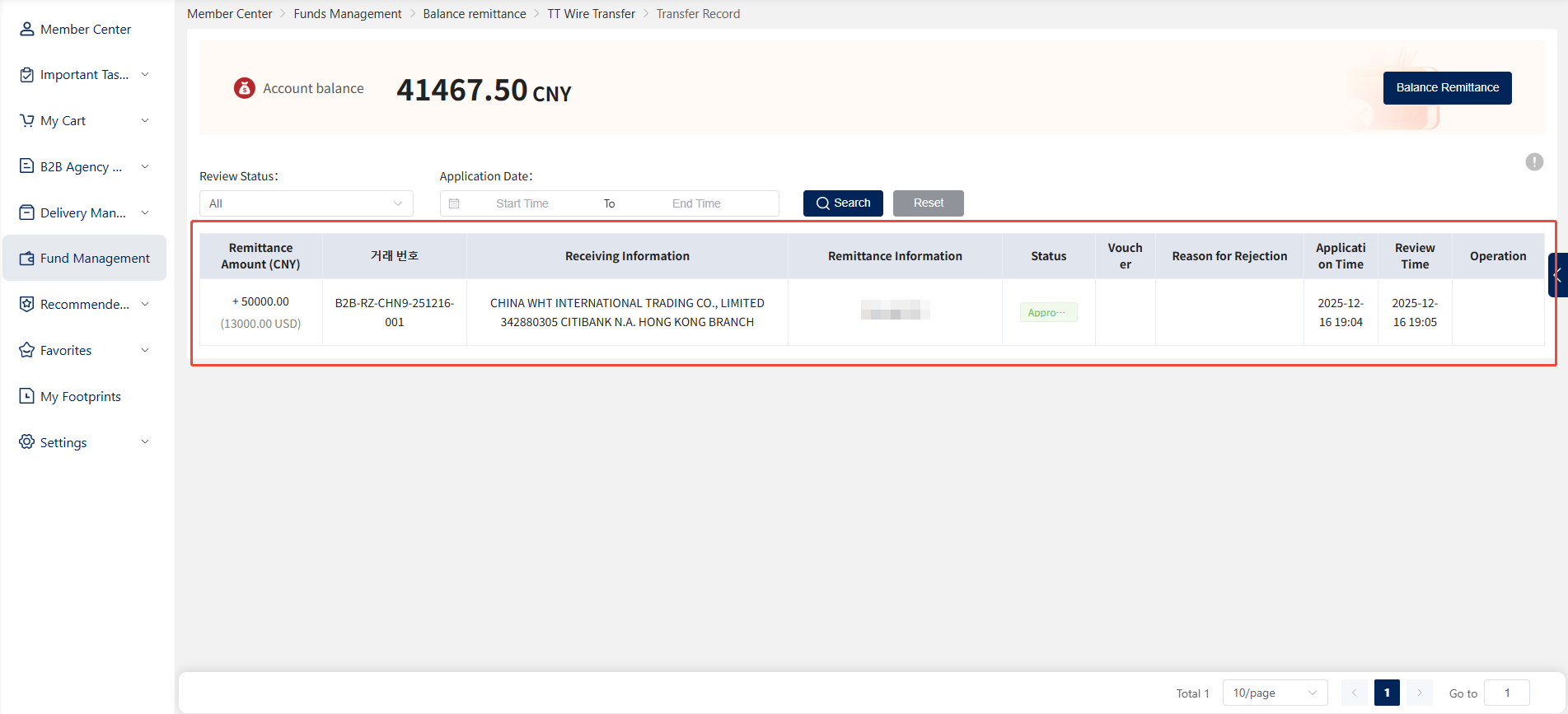
2. Click the "Transfer History" button in the top-right corner of the page to access the [Transfer History] page.
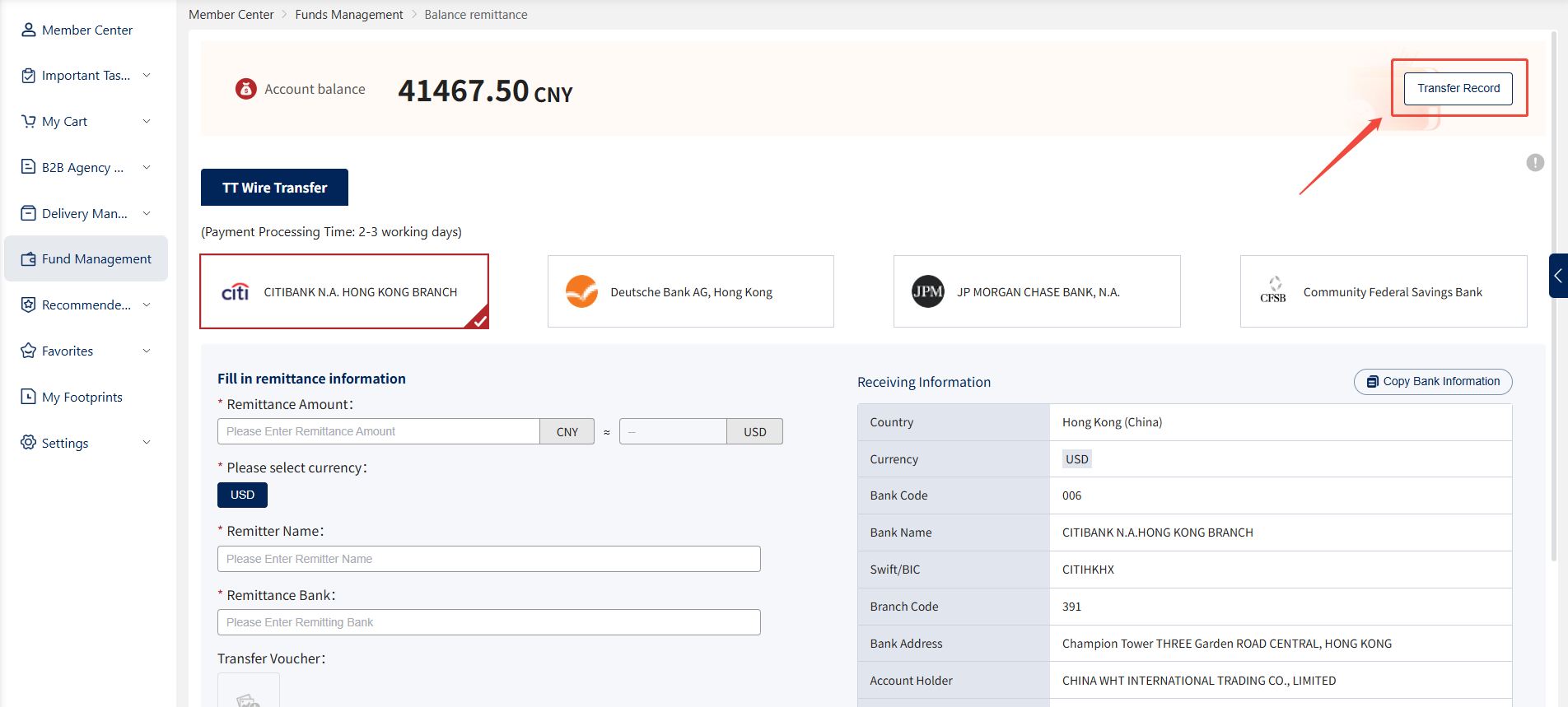
3. On the [Transfer Records] page, you can view detailed transfer information and perform actions such as reviewing or canceling transfers.