

1.Logging into the System
1.1.Open the Hubbuyer platform and log in with your account. https://b2b.hubbuyer.com/
1.2.Use the website's search or image search function to navigate to the product detail page of the item you wish to add to your cart
2.Add to Cart
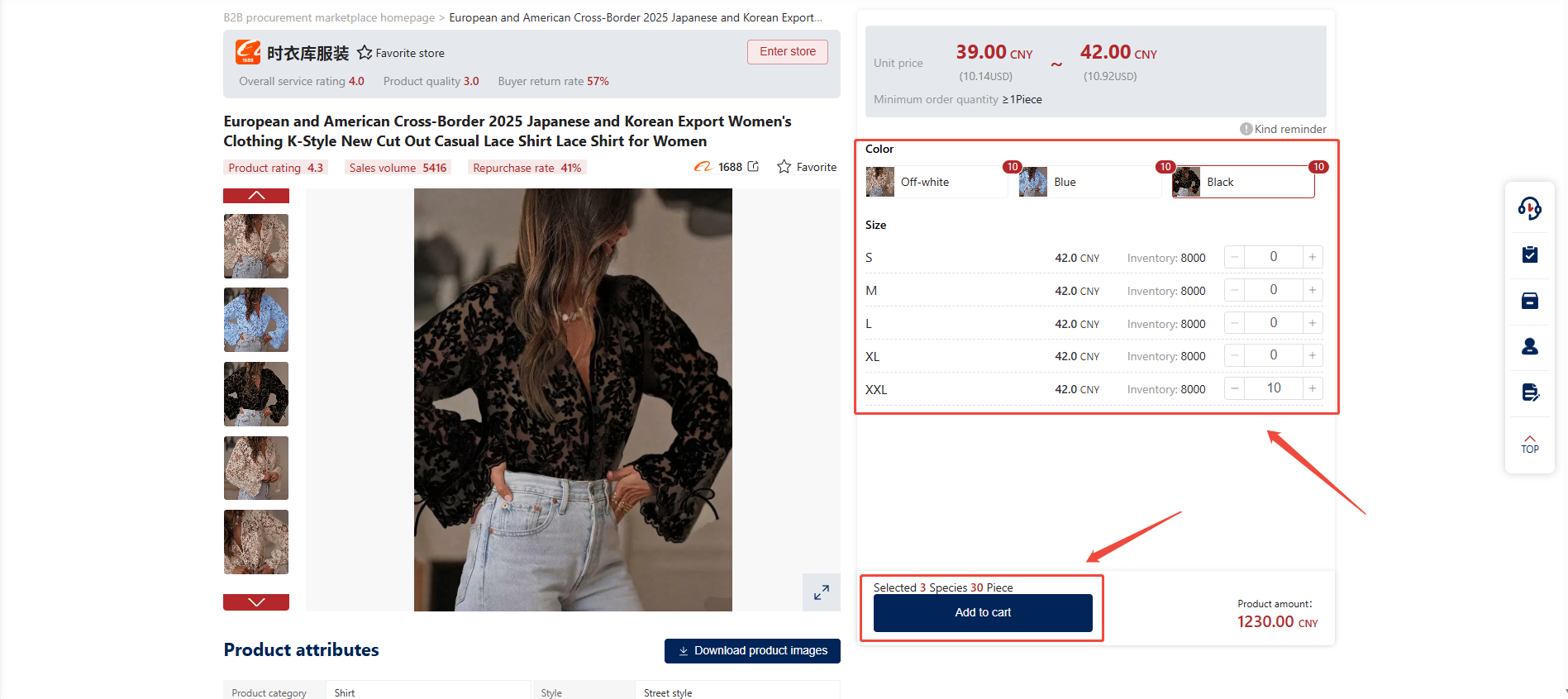
2.1.Select product specifications such as color, size, and quantity, then click the 'Add to Cart' button to place the item in your cart.
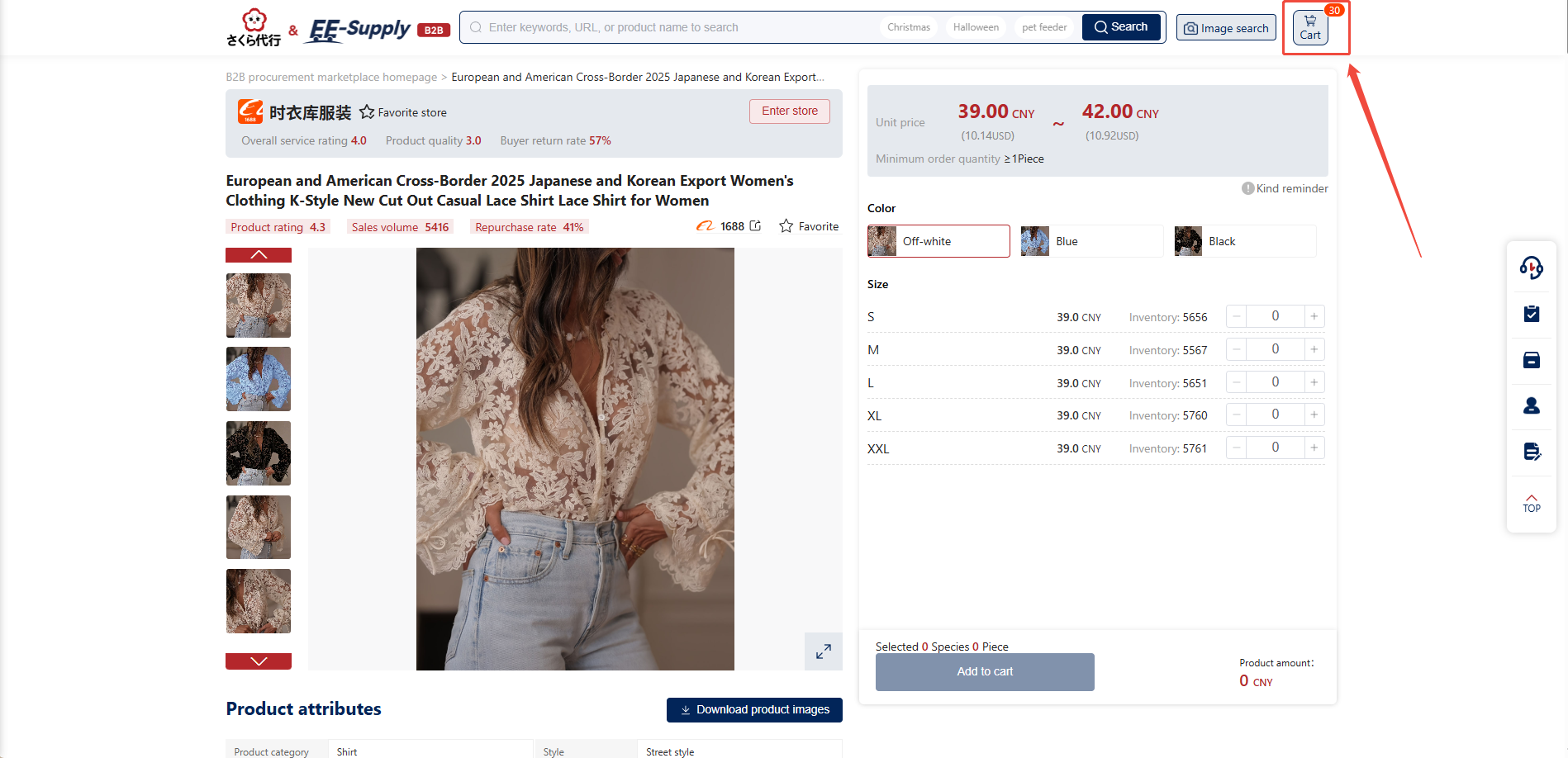
2.2.Click the "Cart" button on the page to access your cart
3.Place Order
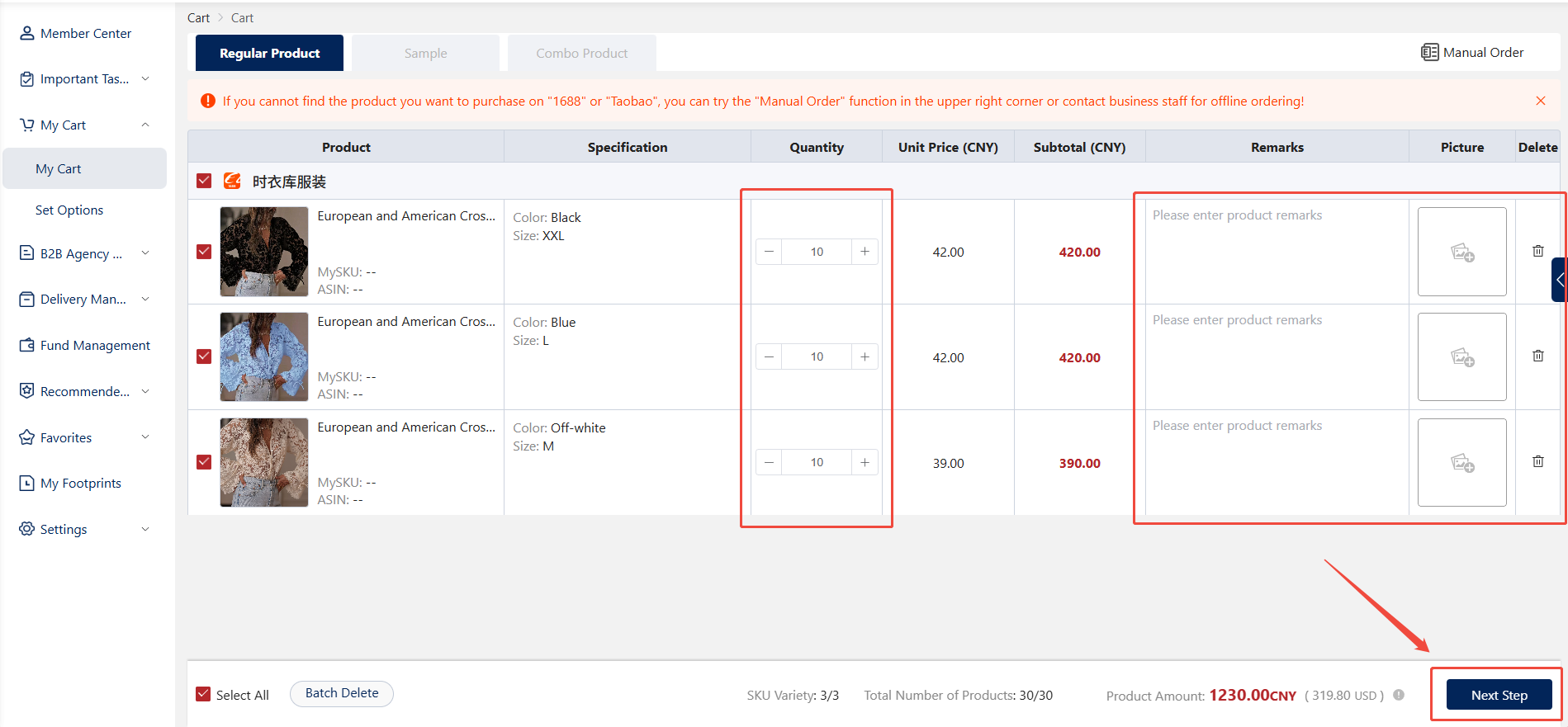
3.1.On the cart page, you can adjust item quantities, add notes, upload reference images, or remove items. After confirming your order details are correct, click "Next".
4.Select Additional Options & Inspection Method
4.1.On the Shopping Cart - Add-ons & SKU Management page, you can set the inspection method and add-ons for items, enter the SKU numbers for each platform, and create corresponding hangtags, care labels, stickers, FBA labels, etc.
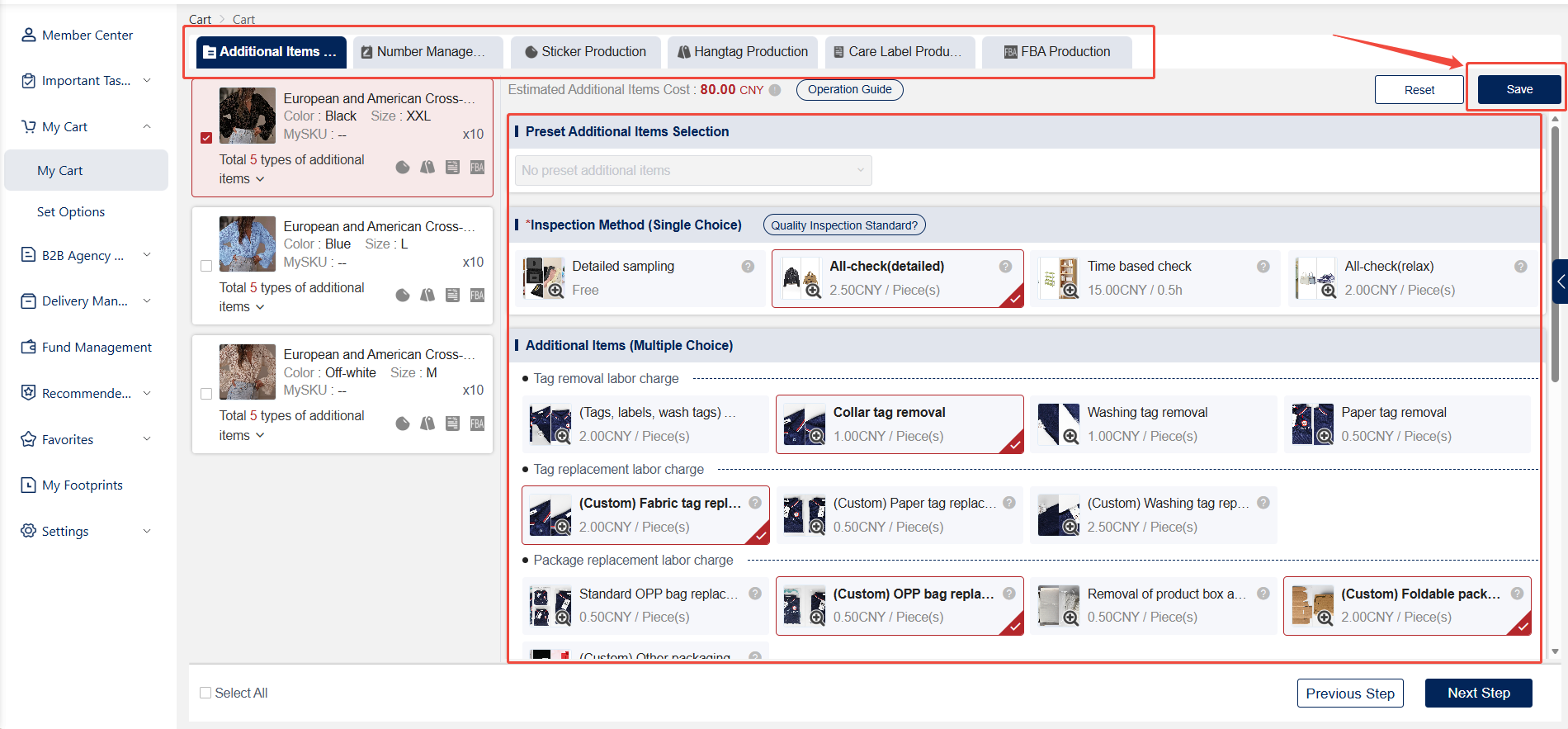
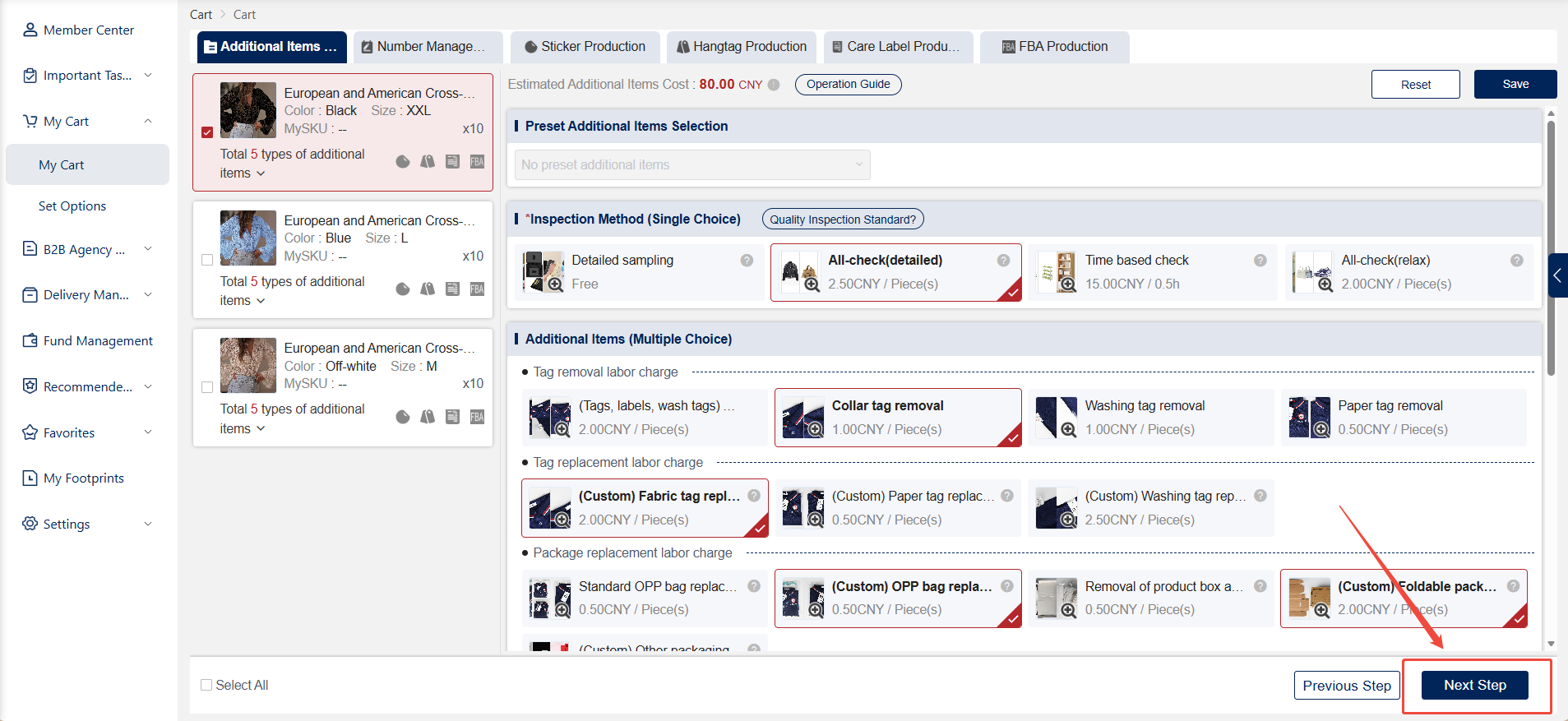
4.2.After configuring product attributes, codes, and other details, click "Next" in the bottom-right corner of the page.
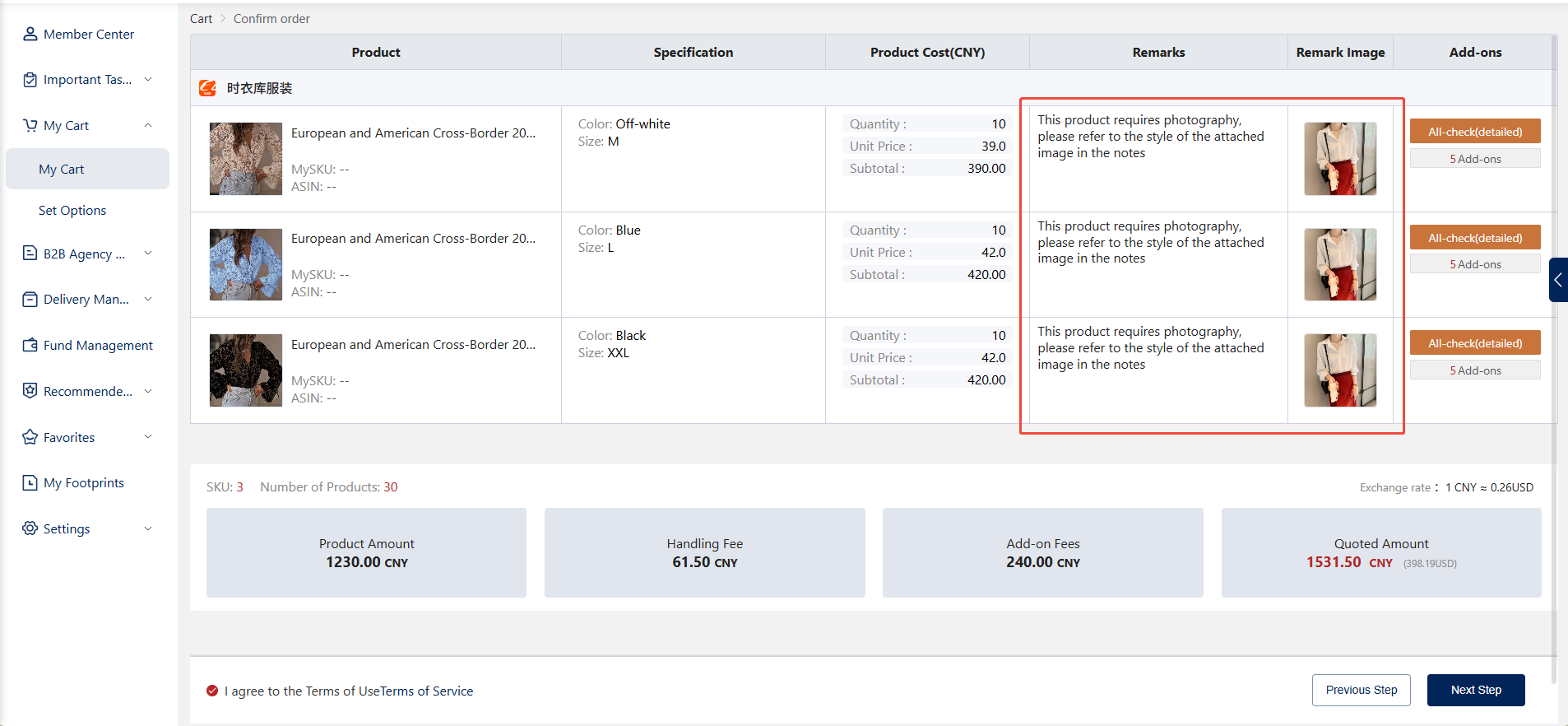
5.Confirm order details
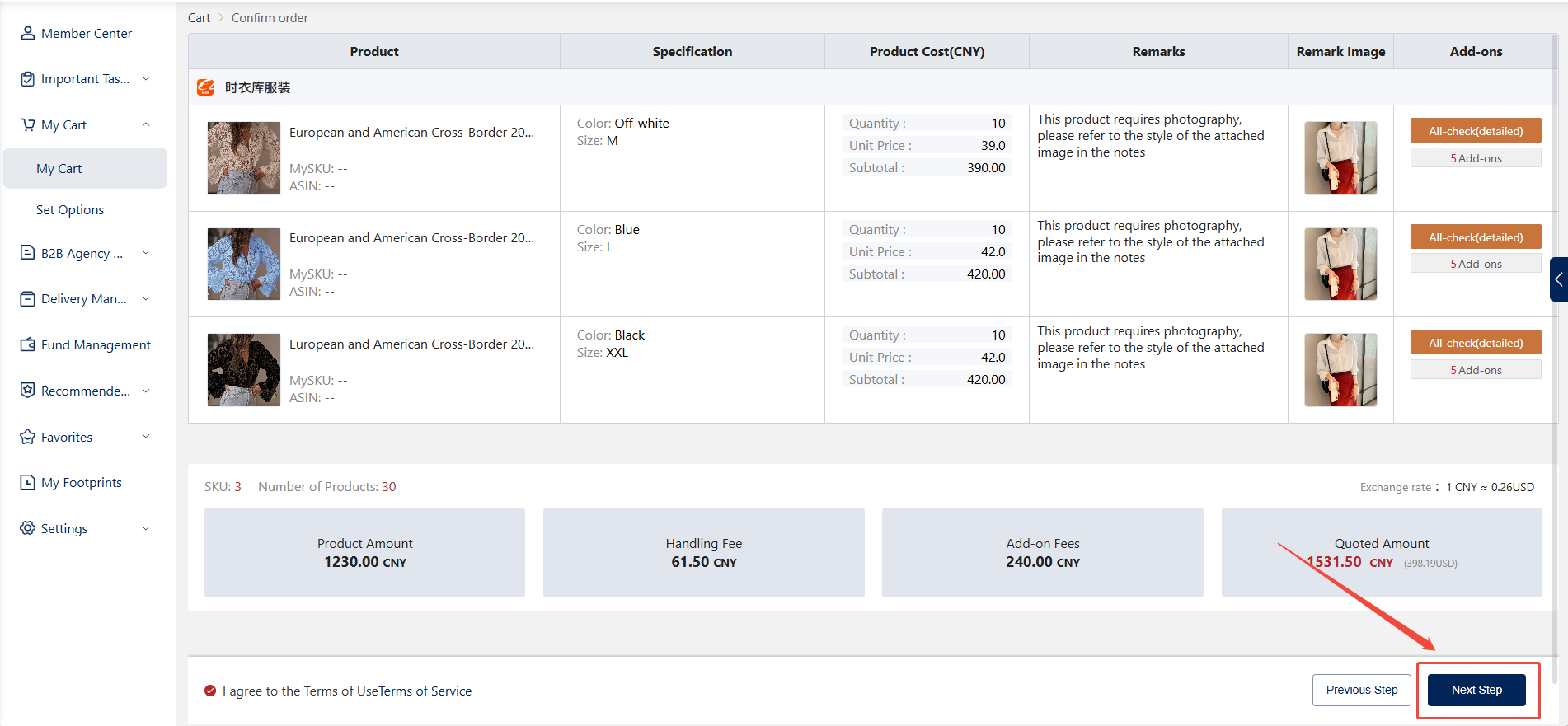
5.1.On this page, you can modify notes and reference images
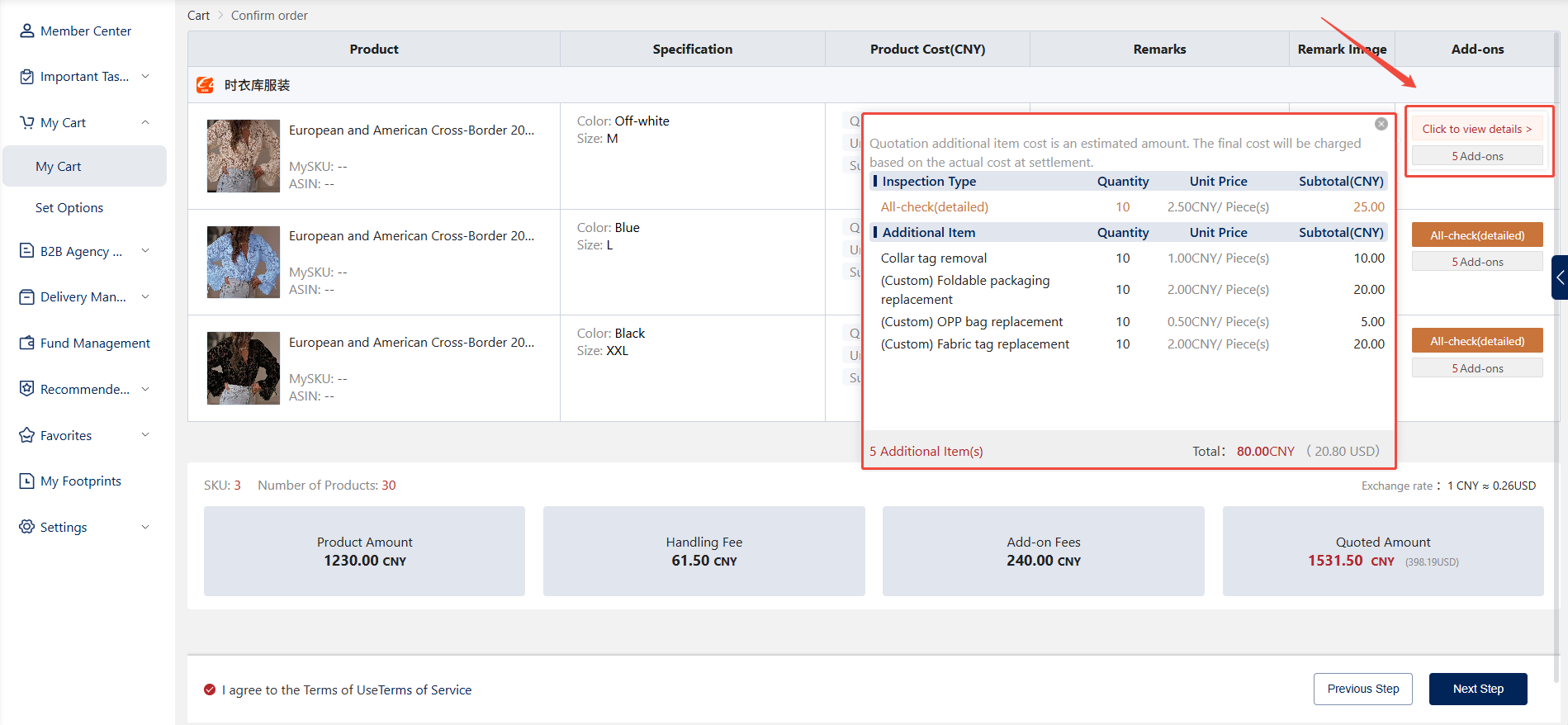
5.2.Click "Inspection Method" in the Additional Features section to view and select all additional features
5.3.After confirming the product information is correct, click "Next" to open the shipping method selection pop-up
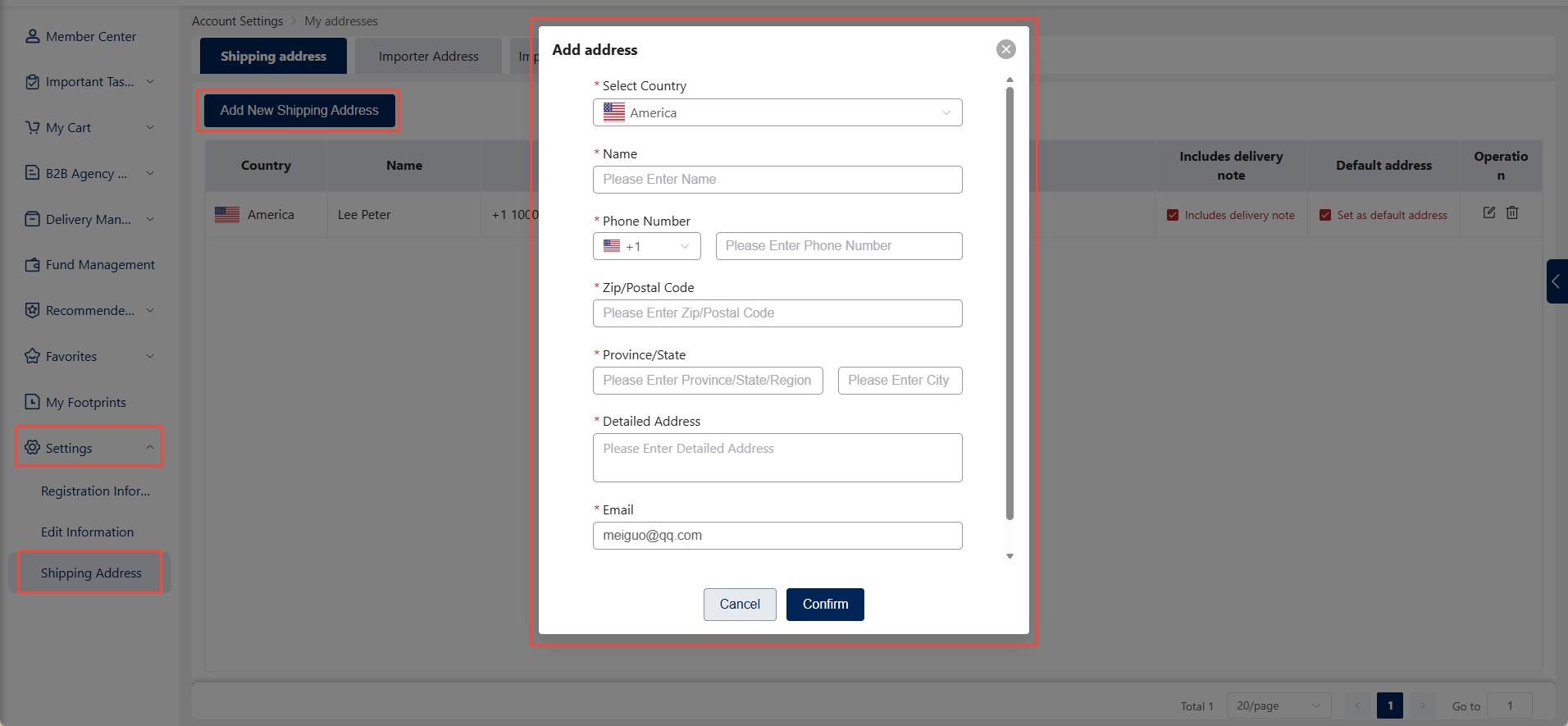
Additionally, before submitting your order, you must fill in the shipping address information to ensure we can deliver the products quickly and conveniently to the designated address.
You can add or modify delivery addresses under [Personal Center > Settings > My Addresses].
6.Submit Order
6.1.Select the desired shipping method. We offer two submission options: Self-Service Quote Form and Agent-Assisted Quote.
Self-Service Quote: Suitable for customers placing multiple orders who are certain their items are not prohibited for customs clearance.
Agent-Assisted Quotation: Recommended for first-time customers or those unsure whether their items are prohibited for customs clearance.
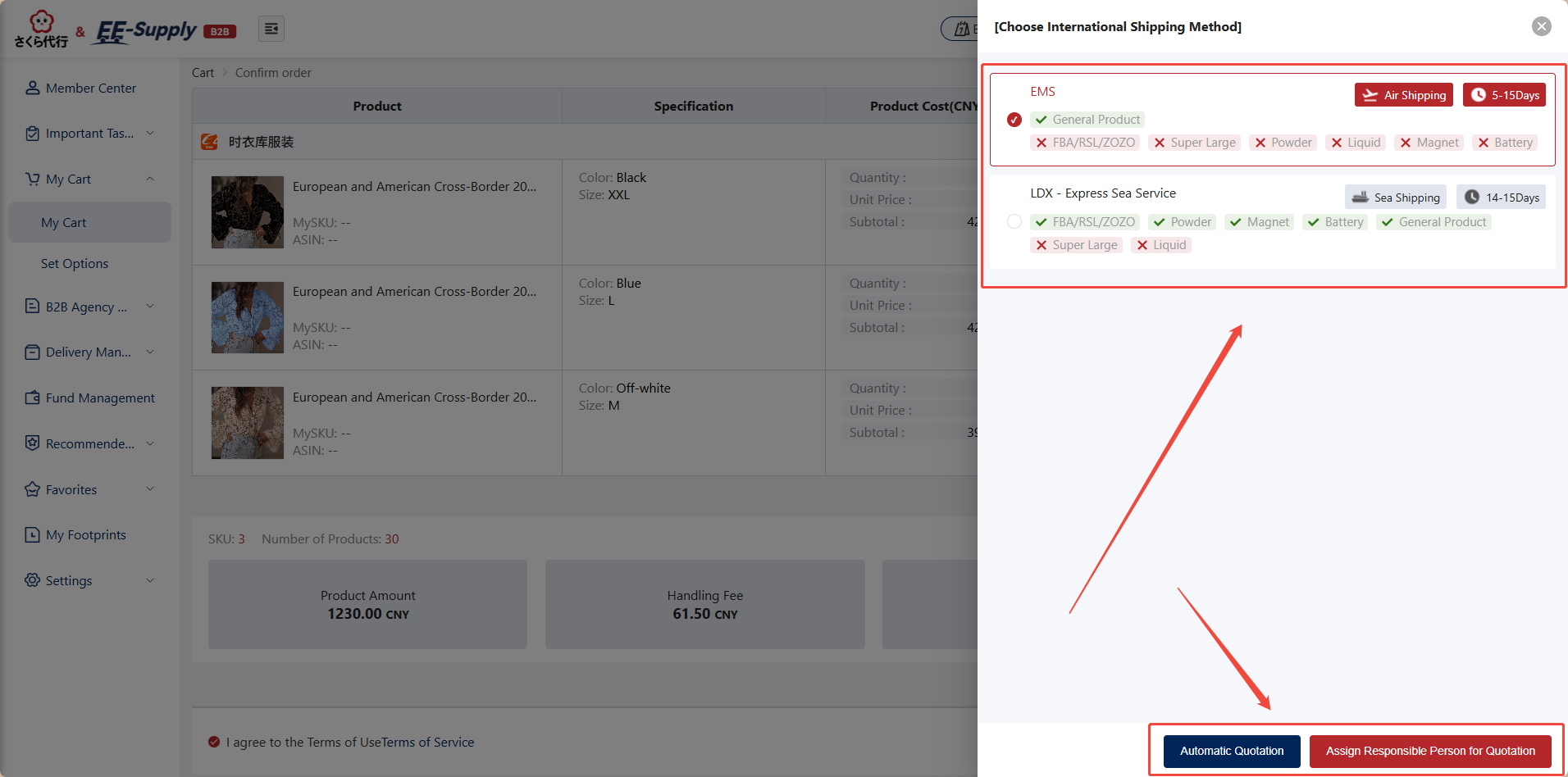
Self-Service Quote Form:
To use the self-service quote method, click the "Self-Service Quote" button to proceed with payment.
Note: The quoted amount displayed for payment does not include shipping costs.
1.If your account balance is sufficient, click Pay to complete the quotation payment.
2.If your account balance is insufficient, top up your account with sufficient funds via the [Fund Management] page to make the payment.
After successful payment, your order is complete. Order details can be viewed and tracked on the [Personal Center - My Orders] page.
Note: For new users placing their first order, to help you better understand China procurement processes, self-quoting is disabled by default. You must request an accurate quote from a sales representative to enhance your China procurement experience.
Requesting a Quote from a Business Representative:
To use this method, click the "Request Agent Quote" button to submit your quote request. Wait for the agent to review it in the backend.
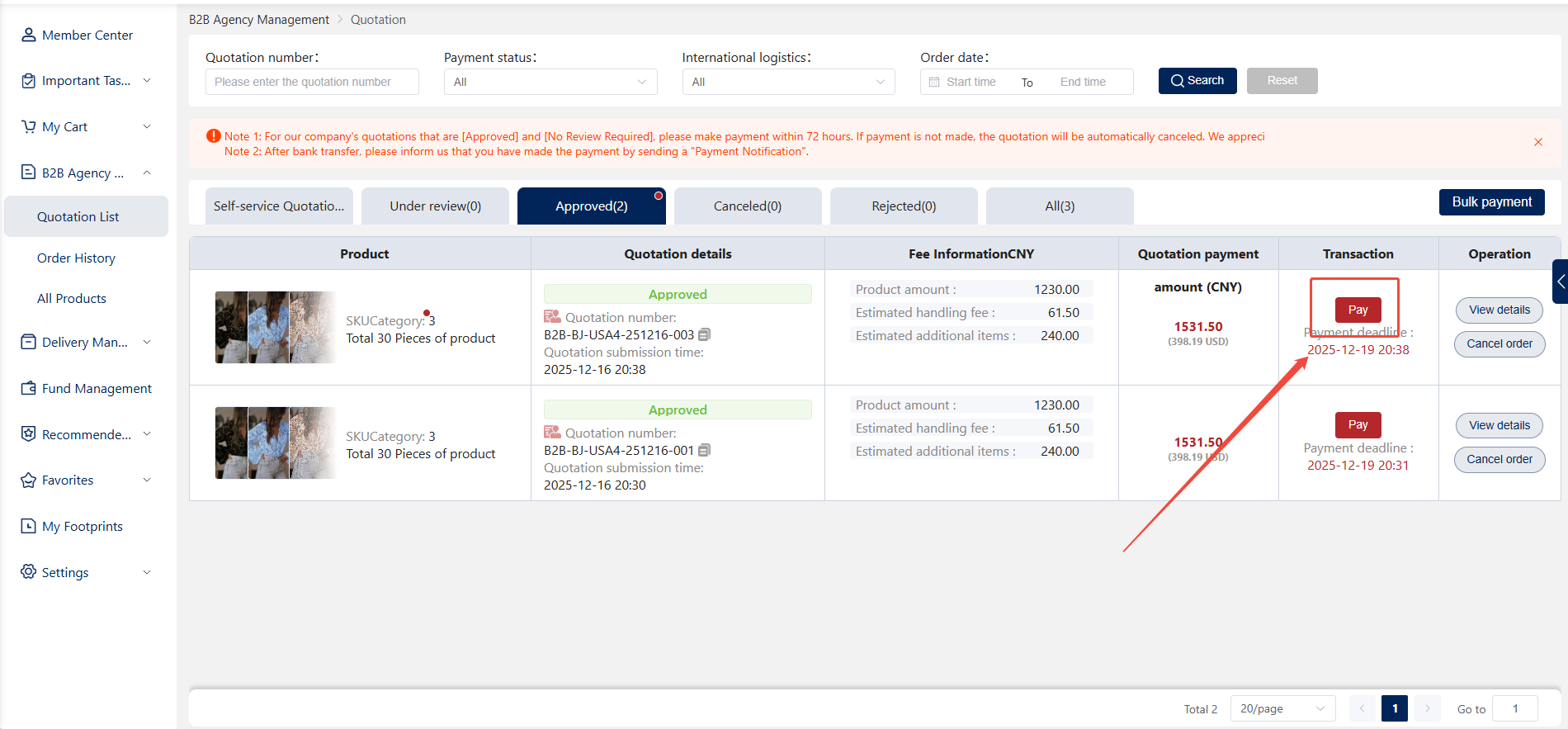
After the sales representative successfully reviews the quote in the backend, navigate to the [Personal Center - B2B Agency Management - Quotes - Approved] page. Select the order and click the payment button to complete the transaction.
Note:
1.Ensure sufficient balance before payment.
2.The quoted amount displayed for payment does not include logistics fees.
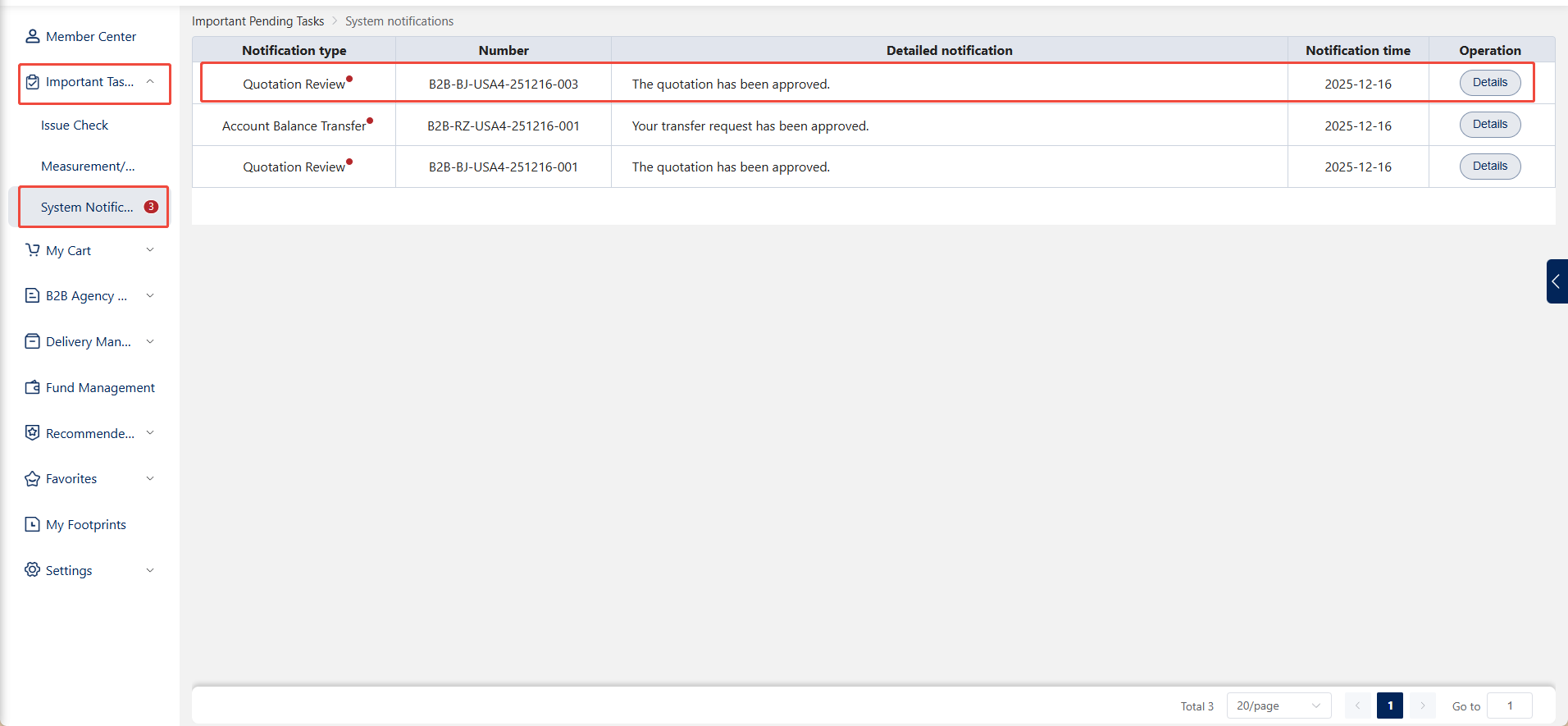
Agent review results will be notified on the [Important Tasks - System Notifications] page.
Approval:
You may click Details to directly access the quotation details page or navigate to [Personal Center > B2B Agency Management > Quotations] to complete the payment.
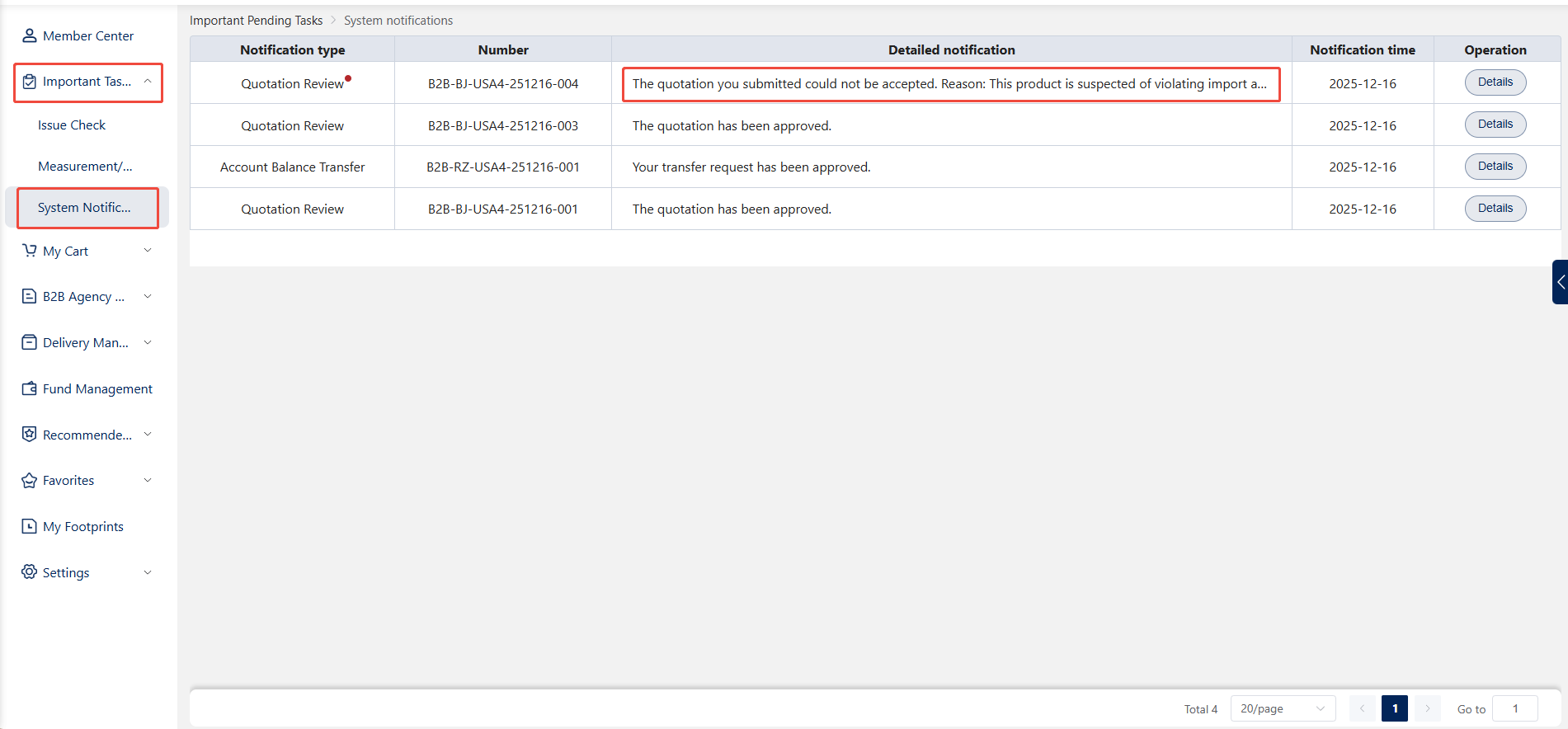
Rejected:
You can view the rejection reason for this order on the quotation details page.
7.Order Payment
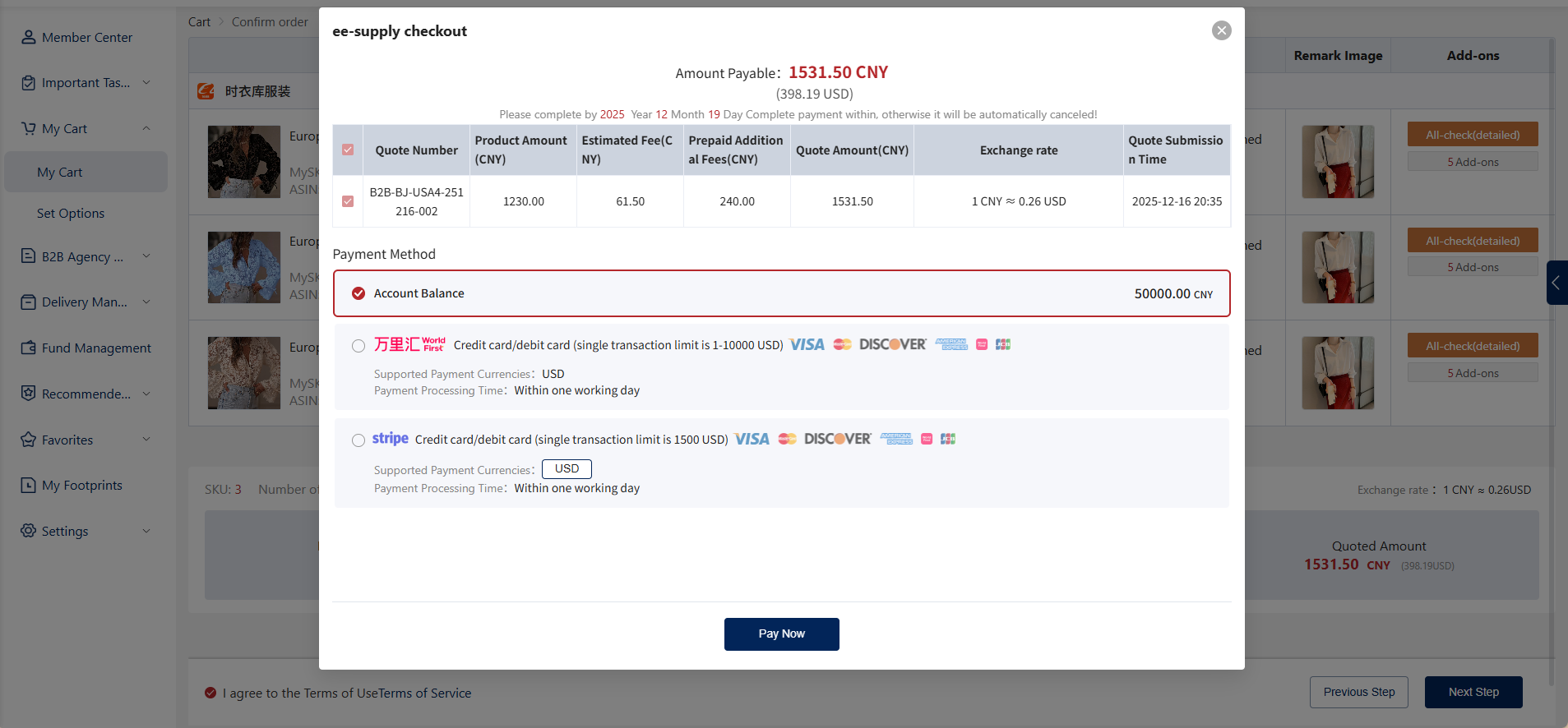
The Hubbuyer platform offers three order payment methods: Account Balance Payment, WorldFirst Payment, and Stripe Payment.
7.1.Account Balance Payment: If your account has sufficient funds, select [Account Balance], then click the [Pay Now] button to complete the payment.
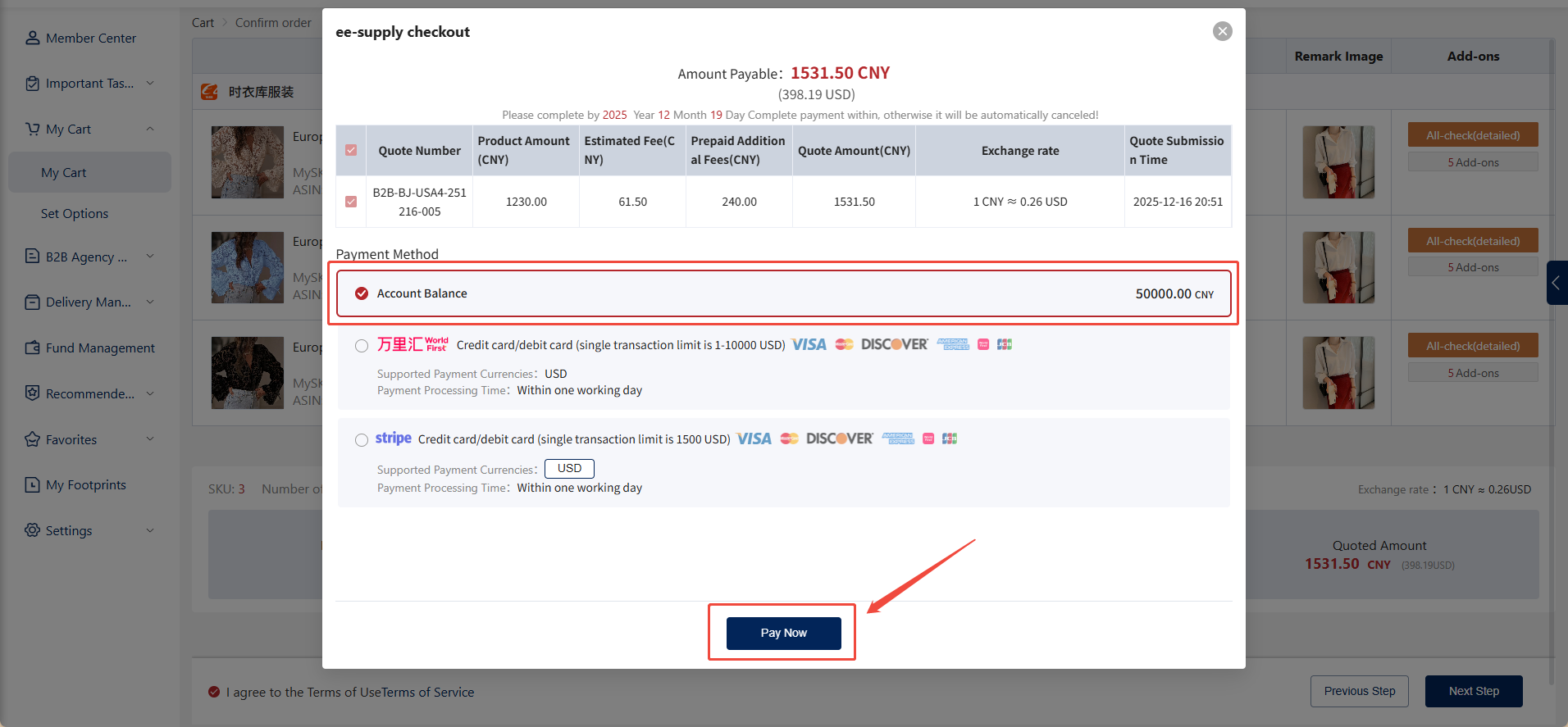
7.2.WorldFirst Payment: Select WorldFirst payment, click the [Pay Now] button to redirect to the WorldFirst payment page, and complete the payment after verifying the information is correct.
Note: Using WorldFirst incurs a service fee, which is borne by the user.
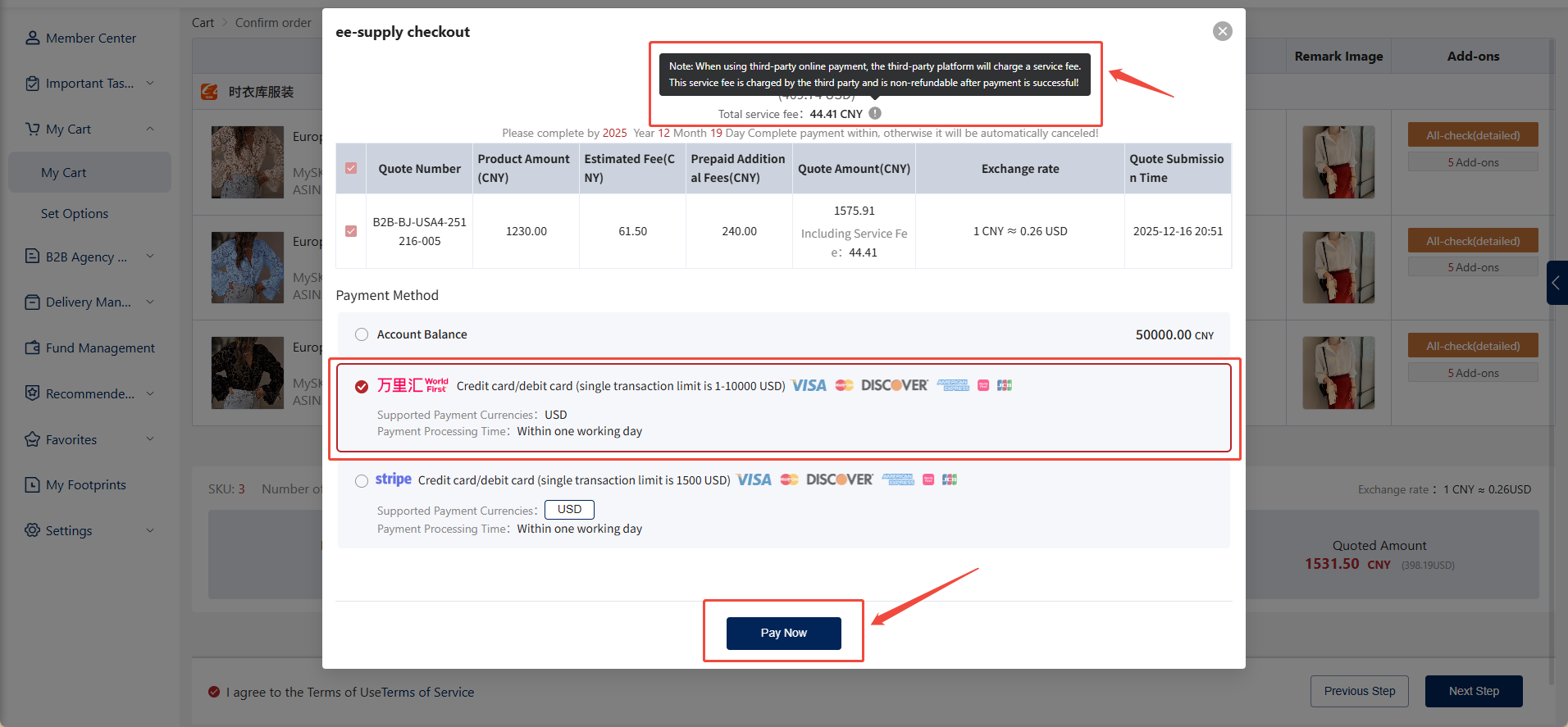
7.3.Stripe Payment: When using Stripe, select the transfer currency, click the [Pay Now] button to proceed to the Stripe payment page, and complete the payment after confirming the information is correct.
Note: Stripe payments incur a service fee, which is the responsibility of the user.
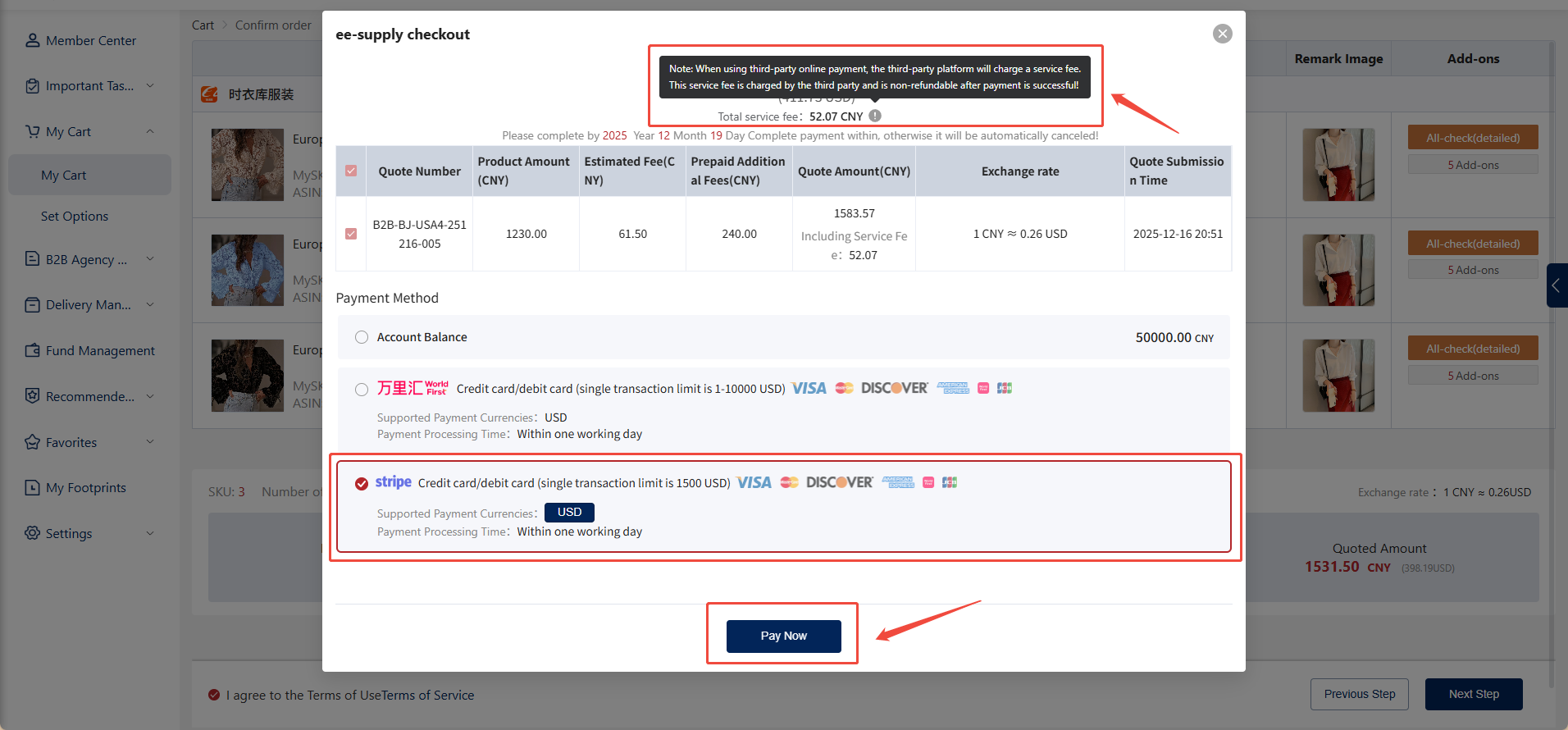
8.View Order Details
After successful payment, your order is complete.
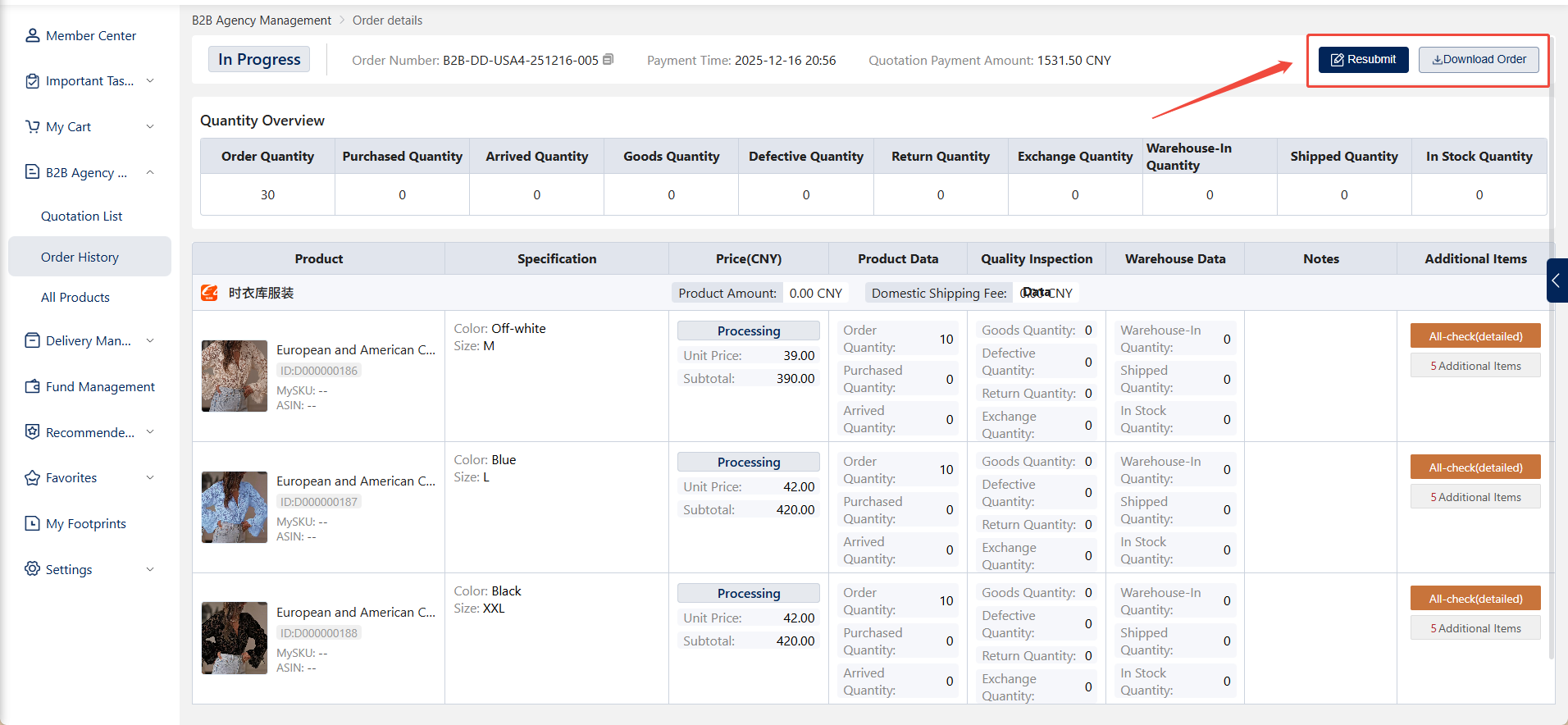
8.1.Order details can be viewed on the [Personal Center > B2B Agency Management > My Orders] page.
8.2.Click "View Details" to see all information for that order.
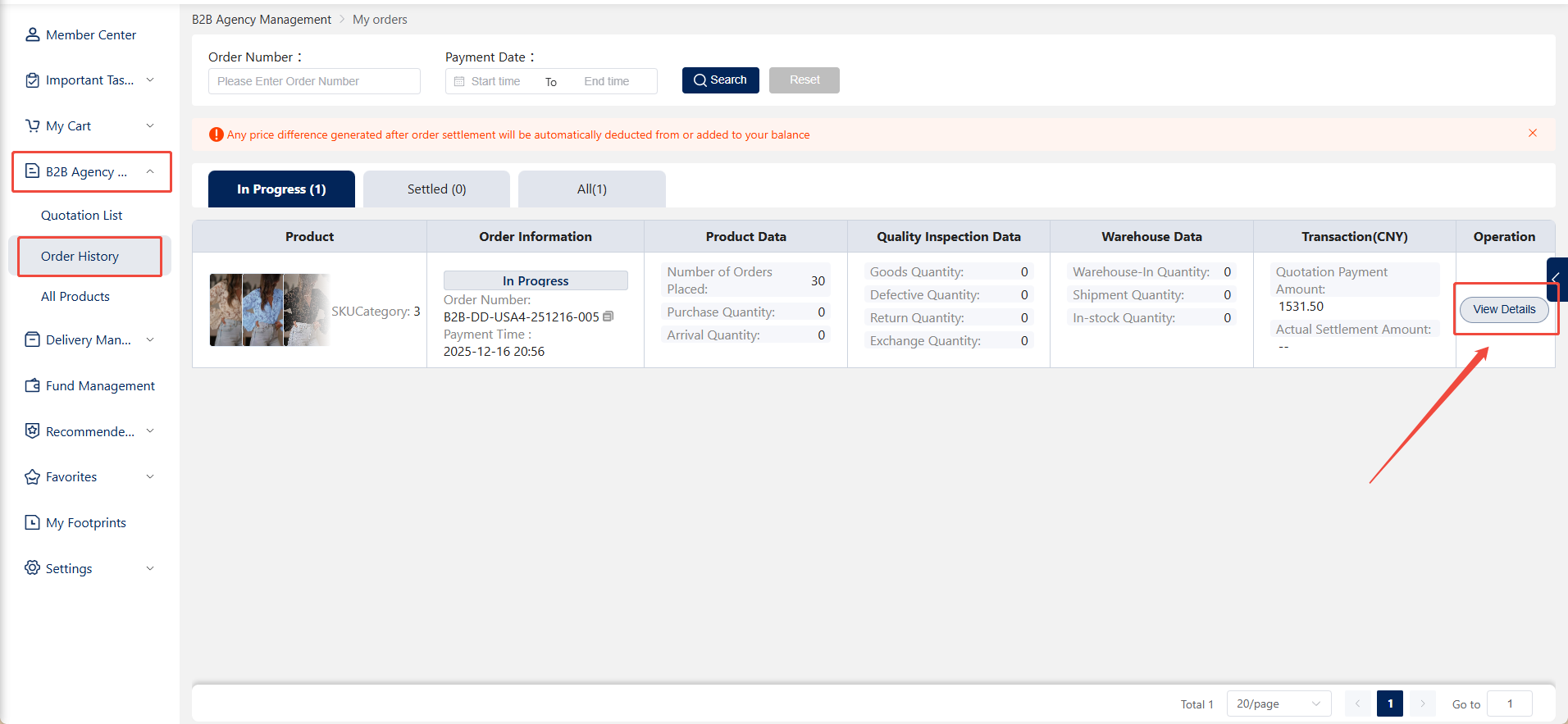
8.3.Click the "Reorder" button to add the items from this order back to your cart for easy reordering.
8.4.Click "Download Order Spreadsheet" to download the order's Excel file.